There are two different jobs hiding inside the phrase “block an app’s internet.” iPhone can stop an app from using cellular data. A DNS filter can also affect the app on Wi‑Fi—but it works by names and rules, not by sealing the app in a perfect box.
The short answer.
If you only need to stop mobile-data use, use the built-in switch: Settings → Cellular → choose the app → turn Cellular Data off. Apple’s own guide is explicit about the boundary: when cellular data is off for an app, that app can still use Wi‑Fi.
If you want the target app to lose access on both Wi‑Fi and mobile data while the rest of the device stays connected, LetMeBe can filter DNS lookups that match the app and host rules you select.
Choose the smallest tool that solves the problem. Cellular switch first. DNS filtering when Wi‑Fi matters. Airplane Mode only when the whole device should disconnect.
What Apple’s native switch does.
The per-app Cellular control is simple and dependable because iOS owns it. Turn the switch off and the app stops using the cellular connection. It does not disable Wi‑Fi for that app, and it does not remove downloaded content, sign you out, or prevent the app from opening.
Background App Refresh is a different setting. It controls when suspended apps may check for updates; it is not a general network firewall. Turning it off can reduce background activity, but it does not make an app offline while you are actively using it.
What LetMeBe changes.
LetMeBe installs the on-device Network Extension profile that iOS requires for local filtering. The VPN label describes the system mechanism; LetMeBe is not an anonymity VPN and does not send your full traffic through a LetMeBe tunnel server.
This approach leaves unrelated apps online and does not inspect message text, page content, passwords, or the payload of network connections. Allowed DNS queries continue to the DNS provider selected in LetMeBe.
Set it up deliberately.
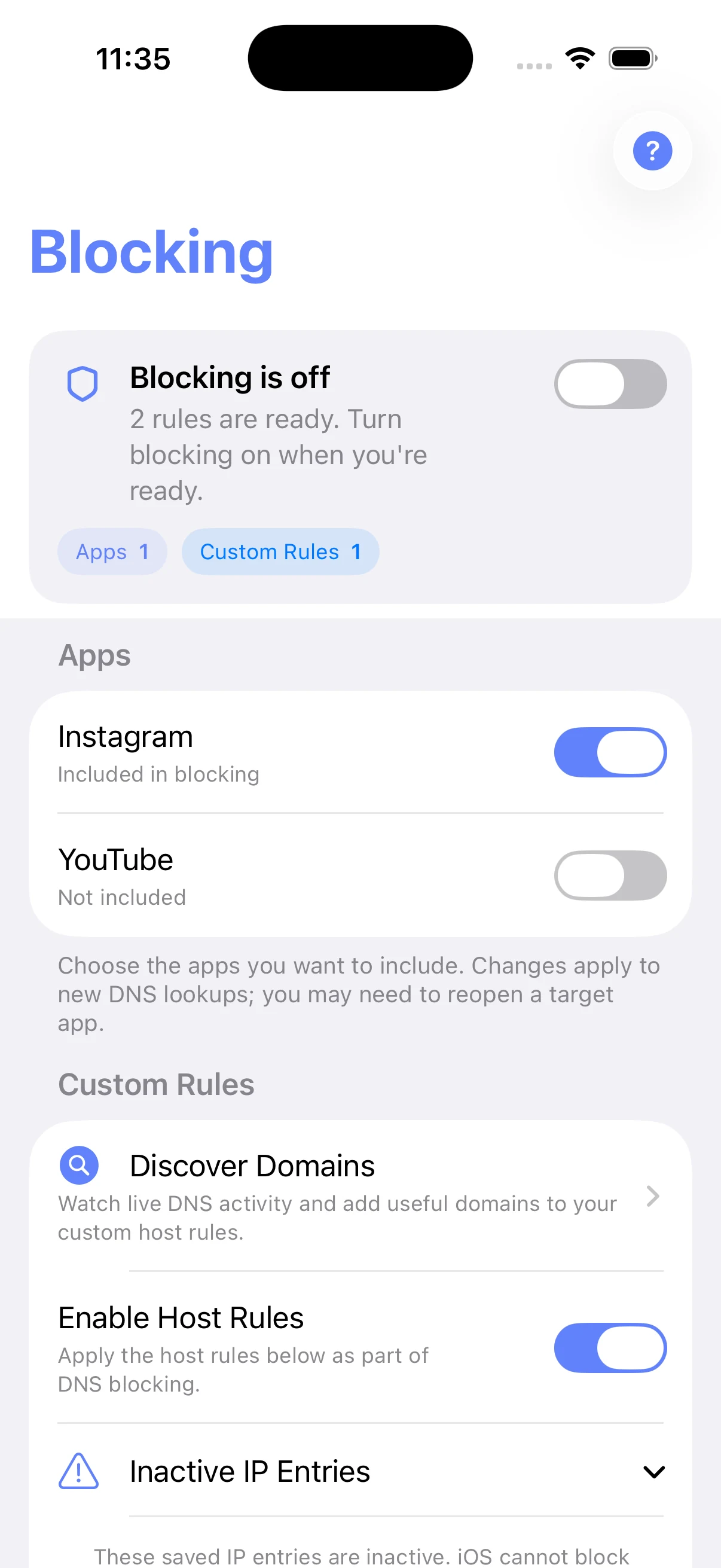
- Open LetMeBe and find the Apps section. Choose the target app so its row says “Included in blocking.”
- Keep custom rules off at first. Start with the maintained app definition before adding your own hosts.
- Turn Blocking on. Approve the iOS VPN configuration if the system asks. Wait until the status reads “Blocking is on.”
- Close and reopen the target app. LetMeBe applies changes to new DNS lookups; an already-open connection may continue until the app reconnects.
Verify the result, not the icon.
A VPN badge only proves that iOS activated the profile. It does not prove that every dependency of the target app is covered. Run a short, repeatable test:
- Open an unrelated app and load fresh content. It should remain online.
- Open the target app and trigger one action that definitely needs the network.
- Wait for a new lookup, not a screen that may already be cached.
- If the action still works, use Discover Domains to observe what it requests.
Change one thing at a time. If you add five custom hosts together and something else breaks, you will not know which rule caused it.
Know what a DNS filter cannot promise.
- Existing sessions can survive. A connection opened before a rule changed may continue until the app reconnects.
- Cached names need no fresh lookup. Reopen the app and allow time for caches to expire before judging a rule.
- Direct IP traffic does not ask DNS. A domain rule cannot match a request that never resolves a domain.
- Infrastructure is shared. Blocking one CDN or system host can affect unrelated apps, which is why LetMeBe flags unsafe candidates.
- Offline content stays offline-capable. Downloads and cached screens can still appear inside the app.
- Notifications use Apple infrastructure. A filtered app can still receive some remote-notification signals through APNs.
LetMeBe is a selective DNS-filtering utility—not a security firewall, parental-control guarantee, malware detector, or anonymity service.
Common questions.
Why does iOS show a VPN indicator?
Apple exposes DNS and routing controls through Network Extension. The indicator reflects that system profile. It does not mean your browsing is being relayed through a remote LetMeBe VPN server.
Will the app stop opening?
No. LetMeBe targets network lookups. The app can still launch and show anything already stored on the device.
Will every notification stop?
Not necessarily. iOS can deliver remote notifications through Apple Push Notification service independently of the app’s normal DNS flow.
What if the app is still partly online?
Reopen it, repeat one network action, then use Observation Mode to identify additional app-specific domains. Avoid broad shared hosts.